
When it comes to creating eye-catching flyers for your business, the design tool you choose can make a huge difference in the final result. At Pugo Designs, we’ve worked with Photoshop, Illustrator, and Canva for different clients and projects — and here’s our take on which tool works best for different situations.
Best Design Tool for Photo-Heavy Flyers: Photoshop
Photoshop is the go-to software for photo manipulation and creative effects. It’s perfect for:
- Event flyers
- Food and beverage promotions
- Designs that require advanced image retouching
Pros:
- Industry-leading tools for photo editing and compositing
- Wide range of creative effects for unique, attention-grabbing flyers
Cons:
- Steeper learning curve — not beginner-friendly
- Requires a paid subscription
- Best results often require a professional designer
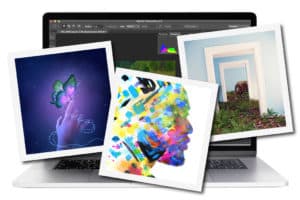

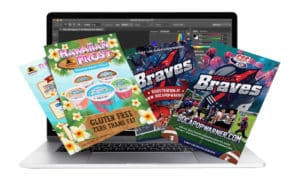

Our Take: If your flyer heavily relies on photography — especially with high-quality food shots or lifestyle images — Photoshop delivers unmatched results. For non-designers, hiring a professional will save time and ensure a polished look.
Best Design Tool for Custom Illustrations: Illustrator
Illustrator is ideal for vector-based designs — meaning your flyer will stay sharp and crisp at any size without losing quality. It’s best for:
- Fully branded flyer designs
- Minimalist, clean layouts
- Print marketing materials that may need resizing
Pros:
- Scales perfectly for large prints like posters or banners
- Great for creating custom illustrations, icons, and branding elements
- Precise control over shapes, lines, and typography
Cons:
- Also has a learning curve
- Requires a paid subscription
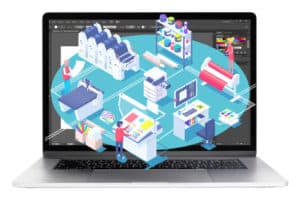

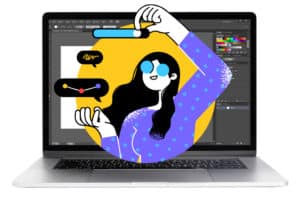

Our Take: Illustrator is perfect when you want a scalable, brand-consistent flyer. It’s especially great for corporate events, trade shows, or campaigns where your flyer design will also be used in other formats.
Best Design Tool for Quick and Simple Flyers: Canva
Canva’s biggest advantage is its ease of use. Even non-designers can quickly create a flyer thanks to its drag-and-drop interface and ready-made templates. It’s best for:
- Businesses without established brand elements
- Simple, one-off flyers
- Projects where clients need to make their own edits
Pros:
- Beginner-friendly — no advanced design skills required
- Free and paid versions available
- Cloud-based — work from anywhere and share with your team
Cons:
- Limited customization for unique branding
- Weak in advanced photo editing and complex layouts
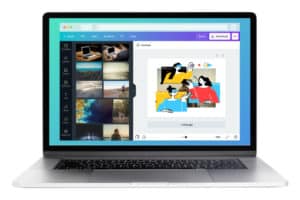

Our Take: Canva is perfect for quick, budget-friendly flyers when full customization isn’t needed. However, if your brand requires unique, highly customized designs, Canva’s limitations can become a challenge.
Final Verdict
All three tools — Photoshop, Illustrator, and Canva — are capable of producing great-looking flyers. The best choice depends on:
- Deadline — How much time do you have to design?
- Budget — Can you invest in professional design software or services?
- Skills — Are you a designer or a DIY marketer?
- Design Style — Photo-heavy, illustration-based, or template-driven?
- Client Needs — Will they need to make their own edits?
Sometimes, we even combine tools for the best results — for example, editing images in Photoshop, creating vector elements in Illustrator, and assembling the layout in Canva for easy client access.
Want more tips on creating impactful marketing designs?
Check out our branding and design blog for expert advice on design tools, branding strategies, and marketing visuals that work.


